Meta Ads Settings to Turn Off Before They Run Your Account

Turn off the Meta ads settings that override your choices. Make your age, gender and audience choices hard limits. Turn off spending on placements you excluded.
Turn off every automatic creative edit, so the text-mixing switch can go off too. Turn off account-wide creative tests. Then check everything again on every ad you duplicate.
Which Meta ads settings should you turn off?
You wrote the ad. You picked the audience. You cut the placements, the spots where ads show, that you did not want.
Then you open the results by age and gender. Picture it: your beauty ad for young women is mostly reaching men over 65. And your ad shows a line of text you never wrote.
Nobody hacked you. You ran into Meta's defaults.
This guide covers the Meta ads settings to turn off, and the order to check them in. Meta documents almost all of them. They are just switched on, pre-ticked, or folded away under 'show more'.
Why does this happen? Meta's automation is built to find results anywhere it can. Your rules slow it down, so many of them start as suggestions.
Our take: a default is a choice somebody else made for you. With your money.
The Settings Lockdown is a top-down check of five layers: account, campaign, ad set, ad and tracking. Run it before launch. Then run it again on every ad you duplicate.
Check five layers from the top down, because the top layers override the bottom
- Account Creative testing off. Legal limits on locations, age and placements.
- Campaign Budget type on purpose. Sharing, cost goal and spending limits checked.
- Ad set Audience lines as controls. Location expansion off. Excluded placements really excluded.
- Ad Enhancements swept off. Your own description. No extra links, catalogs or events.
- Tracking Every domain you own on the pixel allow list.
Our method
Start above Ads Manager: account rules beat ad rules
Check the account-wide settings first, because they apply to every campaign in the account. They live in Advertising settings, outside the screens where you build ads.
The worst one is a creative test opt-in. Meta's own page on text in ads says that once you opt in, test enhancements (automatic edits to your ad) may run on eligible campaigns even if you turned enhancements off on the ad.
So you can switch a feature off on every ad, and it still shows up. Untick the test new creative features box. It can switch itself on after an account has spent for a while, so check it again later.
The same screen holds account controls. These are hard limits for the whole account: locations, minimum age, audiences to exclude, and placements.
Our rule: legal limits go at the account level. Choices about cost and results go in the ad set.
Why? Because someone new will build the next campaign. For example, a telehealth clinic licensed in only some states can exclude the other states once, not on every ad set.
A rule that depends on memory is not a rule. It is a hope.
Put legal limits on the account, so no new campaign can break them
| Account controls | Ad set settings |
|---|---|
| Apply to every campaign, old and new | Apply to one ad set only |
| States or countries you may not serve | Regions that cost too much |
| Minimum age for age-restricted offers | Ages that buy less often |
| Placements the whole business avoids | Placements that underperform this month |
| Set once, survives a new team member | Set every time, easy to forget |
Our rule, built on Meta's account controls page
Check five layers, top down, before every launch and on every duplicate. Account: creative testing off, legal limits set as account controls. Campaign: budget type chosen on purpose, budget sharing off unless you want it, spending limits checked, a lifetime budget plus a schedule for set hours.
Ad set: audience lines as controls, location expansion off, limited spend on excluded placements off, cost goal blank. Ad: all enhancements on, then off, so text per person can go off; your own description; site links, catalog, destination, events, promo codes and related media checked. Tracking: every domain on the pixel allow list.
Make your audience a limit, not a suggestion
In Meta's automatic audience setup, your age, gender, interests and custom audiences can count as suggestions. A suggestion means Meta may show your ad to people outside it when it expects better results.
Meta says so on its audience controls page: suggest women, and your ads could still reach men. To hold the line, make it a control and untick 'Use as a suggestion'.
Does it matter? For example, one beauty brand aimed at young women found much of its delivery going to men over 65.
The men clicked, because the ad showed an attractive woman. They did not buy. Clicks made it look fine.
Retargeting, which shows ads to people who already visited, gets hit hardest. A small list of past visitors, used as a suggestion, can grow into almost anyone.
Then check location. Leave 'Reach more people likely to respond' unticked, or your ads can show outside the places you picked. Location also counts people recently in an area, so visitors passing through can see your ad.
Want to see where the money really went? Open the age, gender and region breakdowns, as in our guide to reading ad data. Broad audiences can still win, as how Meta finds buyers explains, but broad should be your choice.
A suggestion lets Meta go past your audience; a control holds the line
| Used as a suggestion | Set as a control |
|---|---|
| Meta may reach people outside it | Ads stay inside it |
| Suggest women, men can still see the ad | Women only means women only |
| A 2,000-person retargeting list can grow to anyone | The list stays the list |
| Fine for broad tests you chose | Needed for retargeting and legal lines |
Meta Business Help Center, About audience controls and audience suggestions, read 2026-10-17; 2,000 is an example size
Three location settings decide whether ads stay inside your map
| Setting | What it does | What we do |
|---|---|---|
| Reach more people likely to respond | Lets ads go past your chosen locations | Leave it unticked |
| People living in or recently in | Can include visitors passing through | Know it, and fence legal lines at account level |
| Account location controls | Blocks places for every campaign | Use for any state or country you may not serve |
Meta Business Help Center, audience controls and account controls pages, read 2026-10-17
Excluding a placement takes two clicks, not one
When you exclude a placement, Meta may still spend there. Its page on limited spend says it aims to spend around 5% of your budget on each excluded placement, if that is likely to help.
And eligible advertisers start with it on. So an exclusion is a request, not a wall, until you turn limited spend off.
Why exclude at all? Some placements bring cheap clicks and poor leads. We cut Audience Network, Meta's network of outside apps and sites, when lead quality matters more than volume.
Meta backs the default with a number: ad sets that allowed limited spend saw 7.7% lower cost per result on average. Read that number carefully.
It is a percent of your cost, not a dollar amount. On a $50 lead, 7.7% lower is about $46. And Meta counts what a result costs, not whether the lead was any good.
The same goes for claims inside Ads Manager. For example, a banner promising 3.85% higher click-through rate (the share of people who click) means a 1% rate becomes about 1.04%, not 4.85%.
The gain is small. The choice should be yours.
An excluded placement can still get about 5% of your budget
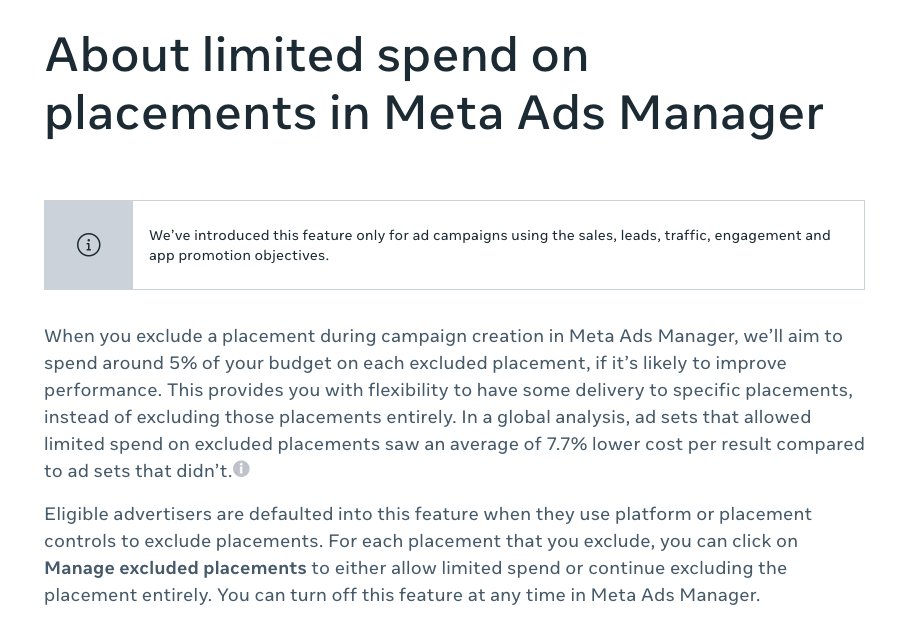
- Excluded does not mean zero. Meta aims to spend about 5% of your budget on each one.
- It starts switched on. You have to turn it off yourself.
- This number is relative, and it measures cost per result, not whether the leads were any good.
- This is where you switch it off for each excluded placement.
Screenshot of Meta Business Help Center, About limited spend on placements, taken 2026-10-17
Example: three excluded placements can still take about 15% of the budget
Meta aims to spend around 5% of budget on each excluded placement while limited spend is on. Example monthly budget: $3,000.
- Placement 1 150
- Placement 2 150
- Placement 3 150
- All three 450
Example math on Meta's 'around 5% on each excluded placement' wording, About limited spend on placements, read 2026-10-17
Example: '3.85% higher click-through rate' moves a 1% rate to about 1.04%
Relative lift, read two ways, on a 1% click-through rate
- Your rate today 1.0
- With a 3.85% relative lift 1.04
- What many people read 4.85
Example math on an in-product claim of 3.85% higher click-through rate
Turn every enhancement off, or 'optimize text per person' stays on
Creative enhancements are automatic edits Meta can make to your ad: brightness, crops, music, overlays, translations and text changes. Meta's page on turning them off says some are on by default.
The one to kill first is optimize text per person. It lets your headline, description and main text appear in any slot of the ad, mixed together.
Here is the catch. It has no off switch of its own. Meta's steps turn it off by turning off a set of enhancements, or all of them.
So use the all-on, all-off sweep. Open the enhancements panel, turn everything on, then turn everything off, and save.
Why the extra step? The panel's count can leave one out. For example, one panel read 0 of 8 before the sweep and 0 of 9 after, so one switch had been hidden.
Then open every folded section and every 'show more settings' link. If the turn-all-off switch fails, turn each one off by hand. Meta also lists its default-on creative features on a Review defaults tab.
Why so strict? Meta's music enhancement can pick the track for you. For example, a sad ad for men whose marriages were falling apart got cheerful holiday music.
The music turned a serious ad into a joke.
Turn everything on, then everything off, so a hidden enhancement shows itself
- Open the panel Find the enhancements panel in the ad's creative settings.
- All on Turn every enhancement on. Note the count.
- All off, then save Turn every one off. Save the ad.
- Check the count It must read zero, and the total must not have grown.
- Check text per person It can only go off now. Make sure it is off.
Our method; the lock between enhancements and text per person is on Meta's optimize text per person page
Text per person goes off only when the enhancements go off
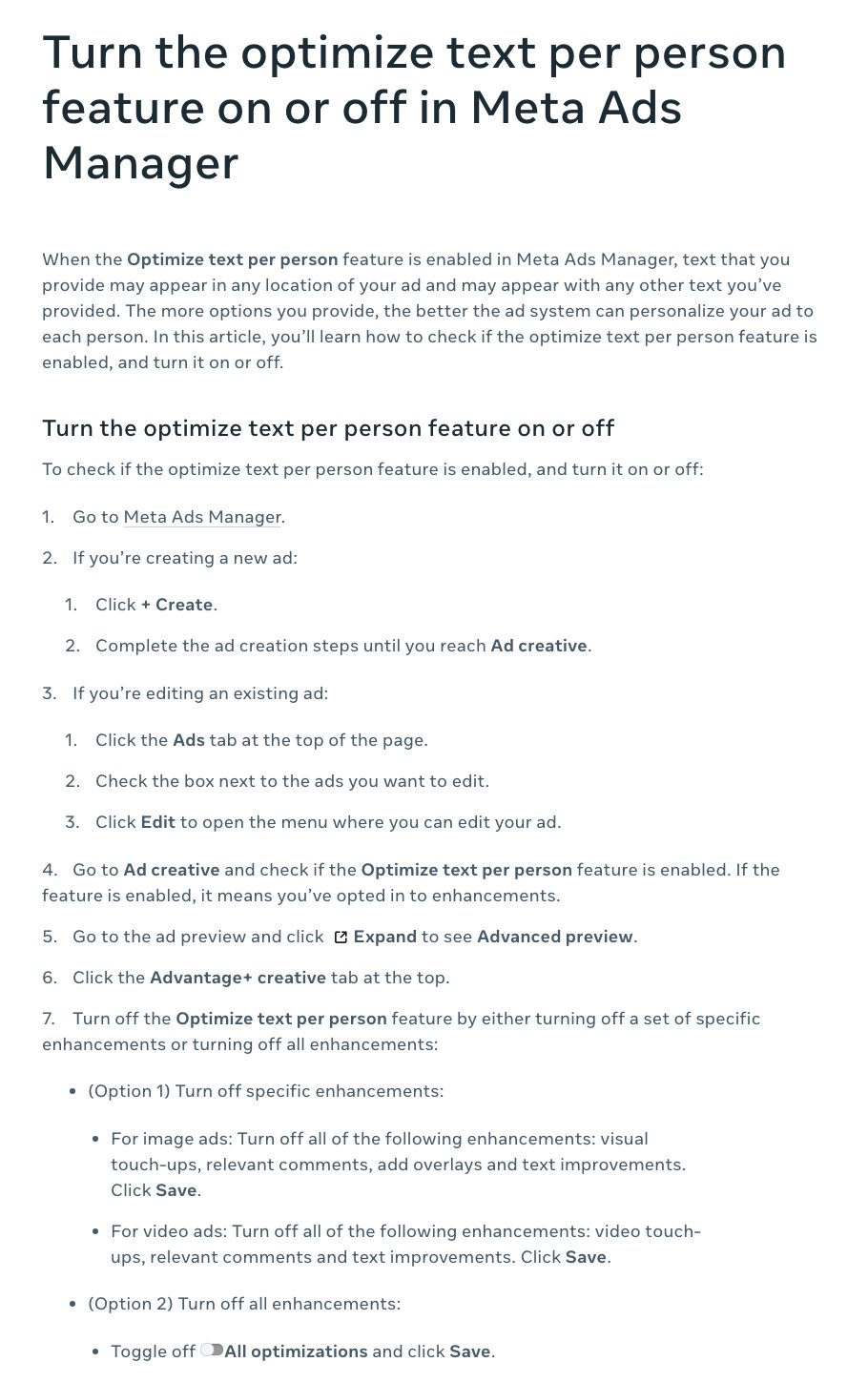
- Your headline or description can end up as the main text of your ad.
- There is no single off switch. It goes off only when the enhancements go off.
- For image ads, all four of these must be off.
- Or turn them all off at once. Then check the count did not grow.
Screenshot of Meta Business Help Center, Turn the optimize text per person feature on or off in Meta Ads Manager, taken 2026-10-17
Fill in the description yourself, or Meta will
Leave the description box empty, and Meta can fill it from your landing page's meta description. That is the short page summary that search engines show.
Leave text per person on, and that summary can move into the main text of your ad. Now a note written for search engines is your opening line.
For example, one business copied a page template and never changed its meta description. Its ads went live showing the template owner's support phone number.
The fix takes two minutes. Write your own description on every ad. Then give every landing page a real page title and meta description.
Empty boxes do not stay empty.
Two empty boxes and one default put a support phone number in an ad
- Page template copied Its meta description still held the template owner's support line.
- Description left blank Meta filled it from the page's meta description.
- Text per person on The description moved into the main text slot.
- Ad goes live Buyers read a stranger's support phone number.
Example from another business. Not our result, and not verified by us.
Check the extras that send clicks somewhere else
Your ad links to one page. Several defaults can add other places to click.
Site links. Meta can read your site and add extra links under the ad, starting from your destination URL. Change the source with 'Edit sources' instead of unticking a dozen links one by one.
Your homepage was not built for strangers seeing your ad for the first time. Your landing page was, as our guide to ad-to-page alignment shows.
Optimized destination can send people to your homepage or a product page instead of your landing page. Meta calls that optimizing. Turn it off.
Catalog: leave it off unless the ad sells from one. For example, a t-shirt seller found ads for German kitchen supplies, in German, showing under his own ads. A catalog had been switched on by mistake.
Catalog access seems to follow the person building the ad. So one client's products can turn up in another client's account.
Events, promo codes and related media. Meta can attach a Facebook event to a webinar ad, add a promo code, or pull in related media from your other ad sets. That can include a video you already tested and dropped.
Every extra link is a way off your page.
Five defaults can send your clicks to a page you did not choose
| Default | What can happen | Fix |
|---|---|---|
| Site links | Extra links to your homepage or policy pages | Remove the source with Edit sources |
| Optimized destination | Clicks land on the homepage, not your landing page | Turn it off |
| Catalog | Another business's products show under your ad | Off unless the ad sells from it |
| Auto-added event | Clicks go to a Facebook event, not your sign-up page | Remove the event |
| Related media | Old or dropped videos play in a new ad | Turn it off and review the media |
Our checklist; related media and site links on Meta's help pages, read 2026-10-17
Pick the budget type on purpose, and check every spending limit
Budget settings decide where the money goes. Choose one campaign budget or separate ad set budgets on purpose.
With ad set budgets, look for a sharing box. Meta's budget page says sharing moves up to 20% of your daily budget between ad sets.
Why care? Meta sees what a lead costs, not how good it is. Sharing feeds the cheap ad set, even when the pricier one brings better leads, which is why we judge results against real sales.
Leave the cost per result goal box blank unless you mean to use it. A number there tells Meta to aim for that cost, and it may then spend less than your budget. Our guide to launching ads for a new offer covers budgets in full.
Then look for limits someone already set. A campaign spending limit stops every ad in the campaign once it is reached. An account spending limit covers the whole account for its lifetime and does not reset each month.
So when ads stop for no clear reason, check both limits first.
Want ads to run only while your phone team works? Use a lifetime budget with a schedule. Meta's ad scheduling works only with lifetime budgets, and it beats switching ads on and off by hand.
Check four money settings before you blame the ads for stopping
| Setting | What it does | What we do |
|---|---|---|
| Ad set budget sharing | Moves up to 20% of daily budget between ad sets | Off when each ad set's spend matters |
| Cost per result goal | May spend less than your budget to hit a cost | Blank unless you chose a cost target |
| Campaign spending limit | Stops every ad in the campaign at the limit | Check it; remove one you did not set |
| Account spending limit | Caps the whole account for its lifetime | Check it in payment settings |
Meta Business Help Center pages listed in Sources, read 2026-10-17
Your pixel only counts the domains you allow
Your pixel is the code on your site that reports visits and sales back to Meta. Its ID is public, so anyone can paste it onto their own site and send you junk data.
Meta's fix is traffic permissions in Events Manager: an allow list or a block list, not both. Meta suggests the allow list.
The trap is the allow list you forget about. For example, one business moved to a new domain, but its allow list still named only the old one.
The pixel fired. The test tools looked fine. The account ignored every conversion.
One added domain brought the data back.
Our rule: every new domain goes on the list the day it launches. New brand sites and launch sites both count.
Sending conversions from your server too? Our guide to server-side conversion tracking covers that layer.
A new domain missing from the allow list made the account ignore every conversion
- Allow list set Before Only the old domain was allowed to send events.
- New domain live Rebrand The pixel fired and the test tools looked fine.
- No conversions counted After Ads had to optimize for clicks instead of sales.
- Domain added Fix Conversion data came back into the account.
Example from another business. Not our result, and not verified by us.
Every duplicate is a new build
Duplicating is the fastest way to launch. It is also the fastest way to undo your work.
Duplicates can come back with enhancements switched on and a catalog attached. The duplicate screen also pushes you toward one shared campaign budget, in big green type.
So treat every duplicate as new. Run the whole Settings Lockdown again before it goes live, the same way our creative testing engine treats every new ad.
How to hand Meta your account in four easy steps:
1. Duplicate last month's winner. Trust the duplicate.
2. Leave every pre-ticked box alone. Meta ticked it, so it must be smart.
3. Skip the breakdowns. The cost per lead looks fine.
4. Blame the algorithm when the leads are junk. Then pay for the damn privilege of being Meta's test subject.
Settings change. Meta adds switches, renames old ones, and moves menus around. The box below lists the current ones and where to find each.
Every duplicate goes back through the whole check
- Duplicate A duplicate can bring defaults back.
- Re-run the five layers Account, campaign, ad set, ad, tracking.
- Launch Only after every box is checked.
- Read breakdowns Age, gender, region and placement.
Our method
Run the Settings Lockdown with AI
Paste the prompt below into your preferred AI. It asks about your business, your limits and your domains. Then it gives you a checklist in the right order.
If it can browse, it checks Meta's current help pages first. It never guesses a setting it cannot confirm.
This week: first, untick account-level creative testing. Second, run the all-on, all-off sweep on every live ad and write your own descriptions. Third, check your pixel allow list against every domain you own.
Want a second set of eyes on your checklist? Send it to us; you are not signing up for anything.
Defaults work for whoever set them. Make sure that is you.
Paste into your preferred AI. It asks seven questions about your account, then gives you a checklist for all five layers.
Act as a careful Meta ads auditor. Build my Settings Lockdown checklist from these rules and my answers only. Never invent a setting name. If you are not sure where a setting lives, say so. If you can browse, first check Meta's Business Help Center for the settings below and tell me what has changed.

Ask one at a time, with the example, and wait:
1. What I sell and the campaign goal. (Example: leads for a home-repair business)
2. Legal or brand limits: places I cannot serve, a minimum age, people to exclude. (Example: only two states; 18 and over)
3. Placements I exclude, and why. (Example: Audience Network, poor leads)
4. Am I retargeting a small list? (Example: site visitors from the last 30 days)
5. Every domain I send traffic to. (Example: main site plus a launch site)
6. Did I duplicate any campaign, ad set or ad? (Example: yes, two ad sets)
7. Should ads run only in certain hours? (Example: weekdays, 8am to 6pm)

Rules, in this order:
- Account: test new creative features off. Legal limits from answer 2 go in account controls.
- Campaign: budget type chosen on purpose. With ad set budgets, budget sharing off unless I accept up to 20% of daily budget moving between ad sets. Check the campaign and account spending limits. Hours-only delivery = lifetime budget plus an ad schedule.
- Ad set: age, gender, interests and custom audiences as controls, not suggestions, wherever the line matters. Location expansion off. Limited spend on excluded placements off. Cost per result goal blank unless I chose a cost target.
- Ad: turn all enhancements on, then all off, save, and confirm the count did not grow. Then confirm optimize text per person is off. I write my own description. Site-link source removed. Catalog off unless the ad uses one. Optimized destination, auto-added events, promo codes and related media off. Open every 'show more settings' link.
- Tracking: every domain from answer 5 on the pixel allow list.
- Every duplicate from answer 6 gets the full list again.

Output exactly:
ACCOUNT:
CAMPAIGN:
AD SET:
AD:
TRACKING:
DUPLICATES TO RE-CHECK:
SETTINGS I COULD NOT CONFIRM:
NEXT THREE ACTIONS:

Filip Kovacevic is the founder of Anar Agency in Phoenix. He spent five years running SEO, Meta ads, email, and content for medical practices across the United States, and now does the same work for healthcare, home-service, legal, and professional-service businesses, alongside AI implementation. More from Filip →
Talk it through in 15 minutes
Bring one question from this article. We will tell you what we would do, whether or not you hire us.
Book a 15-Min Chat →